
Baseline Images for Accurate State-Change Detection
A Gate Is Not One Shape
"Gate" is a label, not a description. The gate at your north perimeter is a sliding chain-link panel on a track. The one at the loading bay is a steel roller shutter. The one at the executive entrance is a wrought-iron swing pair on hinged posts. They share a word and almost nothing else: different materials, different mechanisms, different patterns of what "open" and "closed" look like in a frame.
An agent told to watch for "gate open" has the word, not the gate. It knows the category but not the object:
- Not which gate is on your site
- Not what it's made of
- Not how it sits when closed
- Not what counts as a meaningful change in frame
The same is true of doors, shutters, hatches, and any other asset whose state only registers as a change against a known starting point. The agent needs a reference of the specific object on your site. That's what baseline images are.
Baseline Reference Images
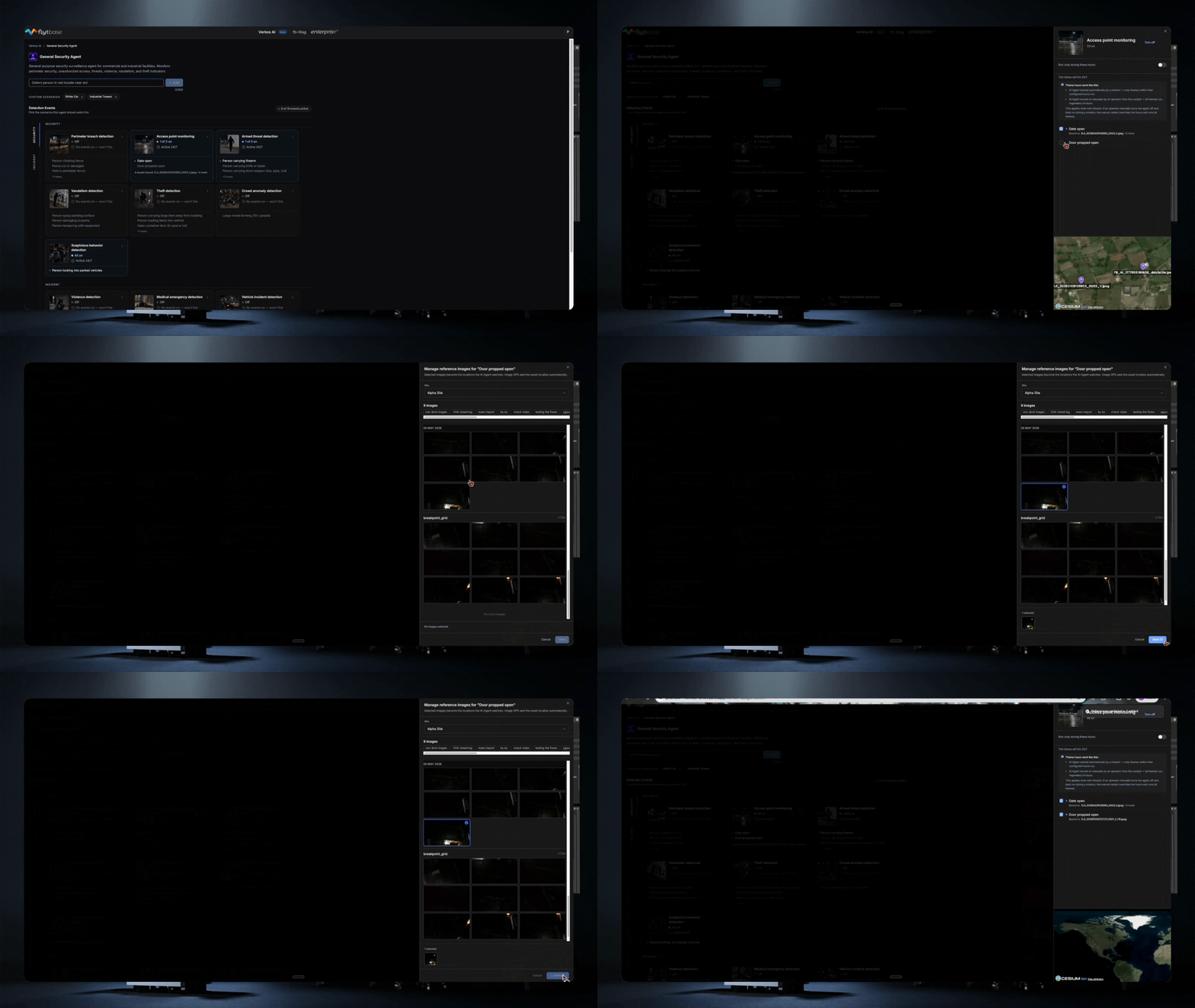
For state-change events like gate open, door propped open, and similar, Verkos now requires the operator to attach one or more baseline images that show the asset in its normal state. The agent uses these as a reference and only fires an alert when the live frame differs from the baseline.
A few things to know about how baselines work:
- Images come from the FlytBase gallery, existing flight imagery from your site
- The GPS location of each image is read automatically and used to scope where the comparison logic activates
- This is an event-level configuration. It applies only to events that need it
- Behavioral and incident events that already work from a single frame like perimeter breach, armed threat, vandalism are unchanged
How It Works
State-change events are gated on baseline configuration. When you toggle one of these events on for the first time, the image picker opens automatically. You cannot enable the event without attaching at least one image.
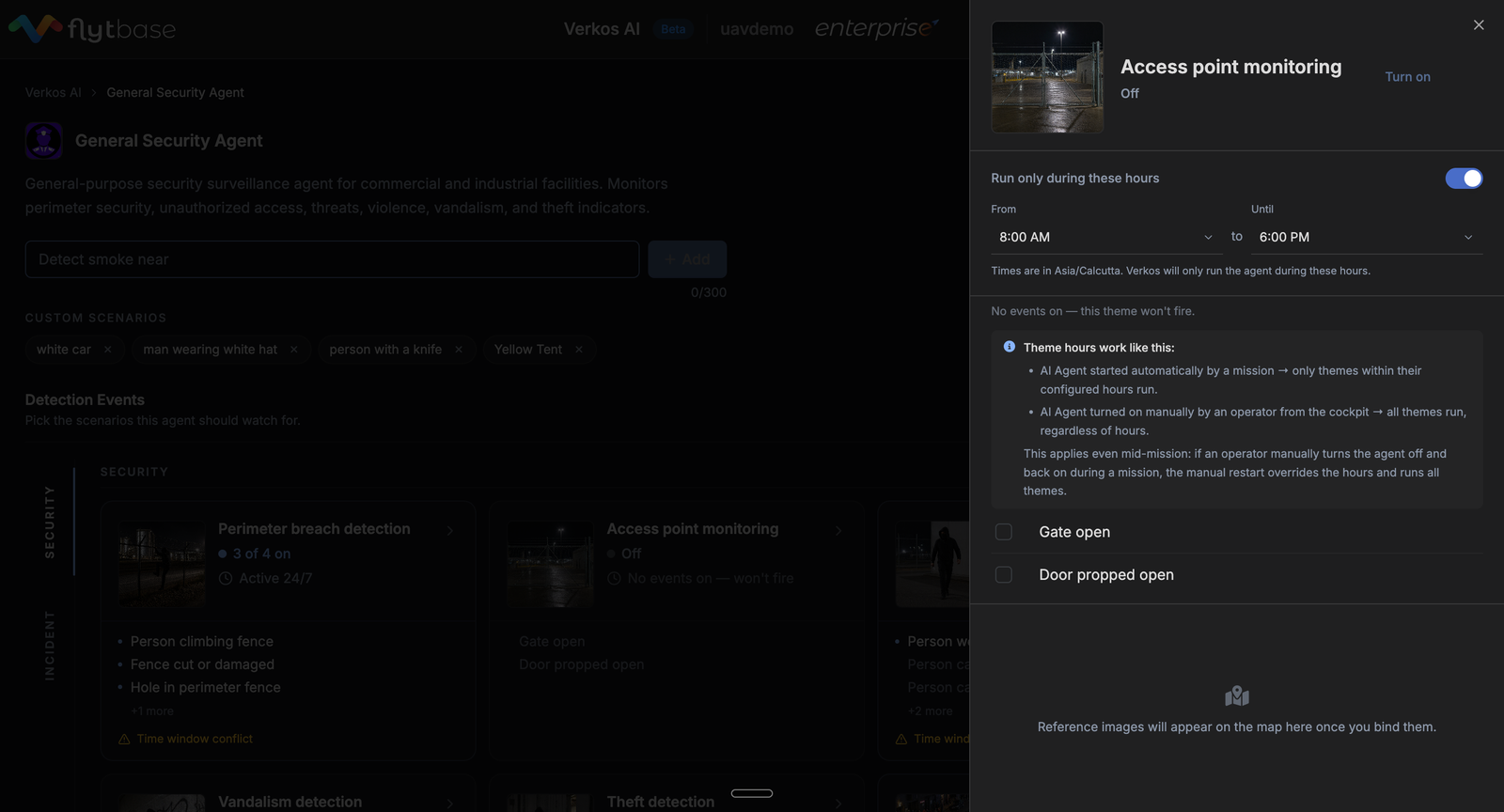
The picker pulls from your gallery. You can filter by site, by date, and by tags. Images without GPS metadata appear in the picker but cannot be selected. The location data is what tells the agent where to apply the comparison.
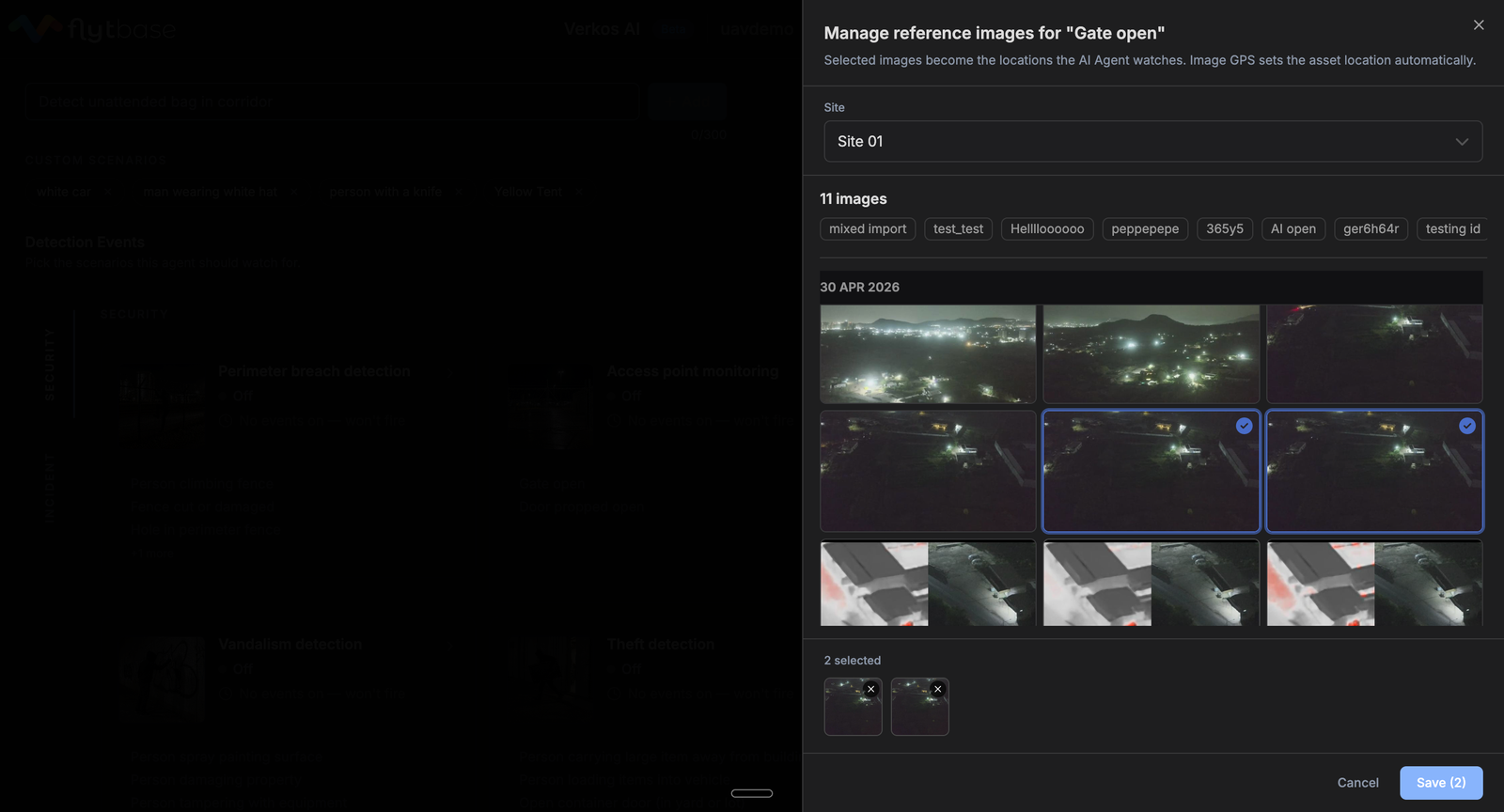
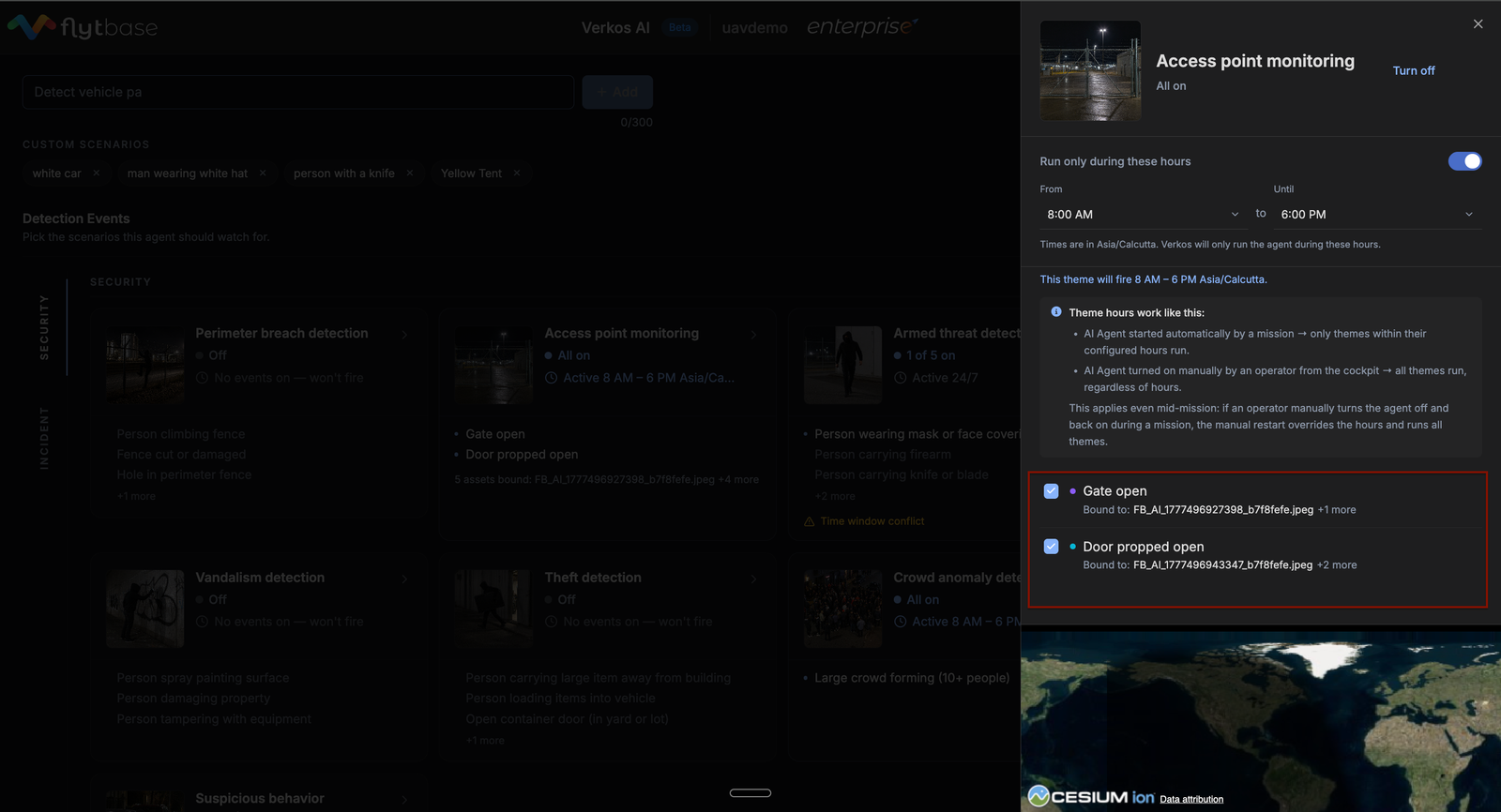
You can attach multiple images to a single event. This is the intended pattern when an event applies across multiple physical locations on a site: three loading-bay doors, two perimeter gates, a rear access point. Each image's GPS location becomes its own activation zone.
What Counts as a Good Baseline
The baseline must capture the asset in its normal state, the state you don't want to be alerted about. For "gate open," attach images of the gate closed. For "door propped open," attach images of the door in its closed, latched position.
Beyond that:
- The baseline should be taken from a similar altitude and angle to where the drone will fly during the mission. A nadir shot won't help if the drone passes at oblique angles
- Lighting matters. A baseline captured in bright daylight will produce noisier comparisons against a dawn or dusk frame. For sites that need round-the-clock coverage, attach baselines from multiple times of day
- Capture the asset cleanly. A reference image where half the gate is occluded by a parked vehicle is a worse baseline than one where the gate is unobstructed
Which Events Require Baselines
At launch, baselines are required for state-change events across multiple agents. Pre-built behavioral, threat, and incident events do not require baselines and are configured the same way as before.
Custom scenarios added through the "Ask AI to search for" field do not currently support baseline images. If you describe a custom state-change event there, it will run without a reference.
Was this helpful?