
Flight Logs Filter Bar
Simplify flight log audits with the new Flight Logs Filter Bar.
Auditing flight logs on FlytBase required navigating through multiple dropdowns and side panels to filter by time, site, drone, or personnel. Identifying who was flying or controlling the payload on a specific mission took several clicks and was not intuitive.
Introducing the Flight Logs Filter Bar
The Flight Logs Filter Bar consolidates all filtering into a single, sentence-style interface. Instead of navigating separate panels, fill in blanks to filter by time, site, mission, drone, dock, and personnel.
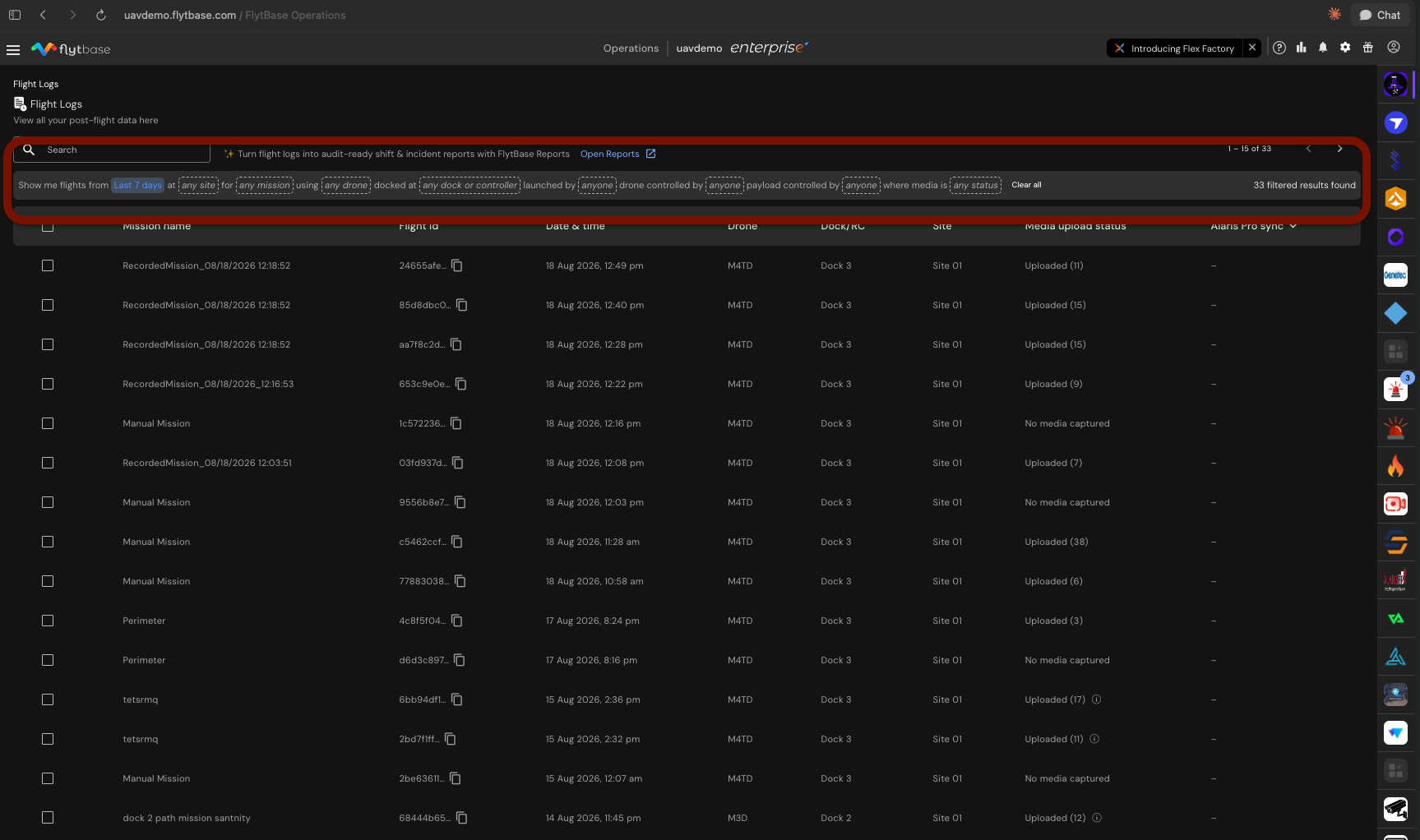
Three new personnel filters address common audit questions: who launched the flight, who was the pilot-in-command, and who operated the camera and gimbal.
Why This Matters
Each filter option shows a count of matching flights before selection. Options that return zero results are dimmed, preventing empty searches. The "any" and "together" modifiers allow filtering for flights where multiple personnel were involved, either in any role or simultaneously.
Step-by-Step Walkthrough
Step 1: Access the Flight Logs Page
Open the FlytBase Operations web app and navigate to the Flight Logs page. The filter bar is displayed at the top.
Step 2: Start Filtering
Select the blanks in the filter bar. Options for time, site, mission, drone, dock, and personnel are searchable.
Step 3: Use the New Personnel Filters
Select Launched by to filter by who started the flight. Use Drone controlled by and Payload controlled by for pilot and camera operator filtering.
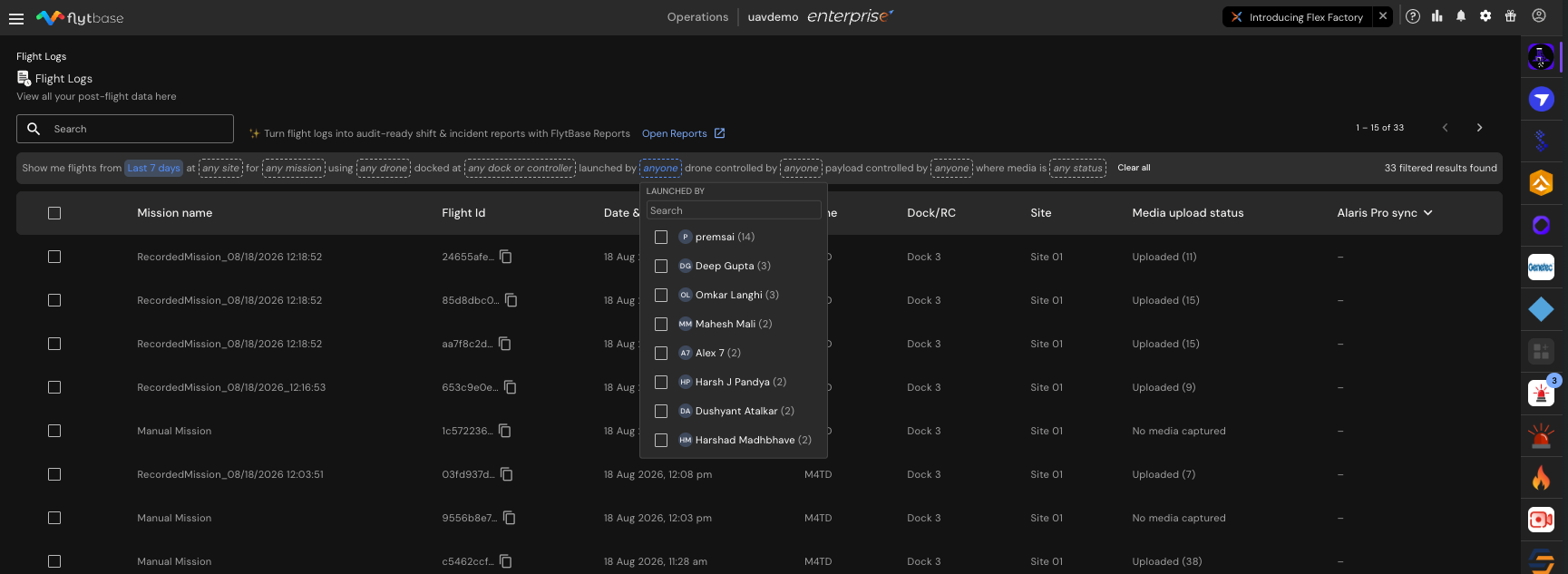
Step 4: Set Time Windows
Choose a predefined period (today, yesterday, last 2, 7, 30, or 60 days) or set a custom date range.
Step 5: Apply Filters and Review Results
Filters apply automatically. A progress bar indicates loading; other data remains accessible during this time.
Constraints & Requirements
| Component | Details |
|---|---|
| Interface | Sentence-style with clickable blanks |
| New Filters | Launched by, Drone controlled by, Payload controlled by |
| Time Window Options | Today, yesterday, last 2, 7, 30, 60 days, or custom date range |
| Multi-select Capability | Available for all blanks except time window and media status |
| Immediate Availability | Live for all organizations, no feature flag required |
| Progress Indicator | Thin progress bar replaces full-page spinner during filter application |
Access
The Flight Logs Filter Bar is available to every organization and user with Flight Logs access. It is already live. No feature flag or activation is required.
Was this helpful?