
Copy-Paste Waypoints Across Missions
Copy-Paste Across Missions, Smarter Editing, KML Import, and Keyboard Controls
This release introduces major workflow improvements to the 3D Mission Planner designed to reduce mission planning time, eliminate redundant flight operations, and make complex inspection planning significantly more flexible.
These enhancements focus on one core objective:
Turn missions into reusable building blocks instead of static flight plans.

The Problem
Inspection missions require precision.
Operators invest time in: Setting accurate waypoint positions, Adjusting gimbal angles, Configuring zoom levels, Defining Oriented Shoot parameters, Adding AI Spot Check references, Recording live missions in the field
Especially for Live Mission Recording workflows, this represents real flight time and operational cost.
But once created, these missions were isolated.
Operators had to: Rebuild missions from scratch, Duplicate and manually delete waypoints, Re-record missions in flight. This led to: Redundant planning effort, Increased launch-return cycles, Battery waste, Operational inefficiency
The Solution
Waypoints are now reusable across missions.
You can: Select waypoints from one mission, Copy them, Paste them into another mission, Preserve full configuration
Everything travels with the waypoint: • Position • Gimbal angle • Zoom level • Waypoint actions • Oriented Shoot data • AI reference imagery
Your missions become modular.
Copy-Paste Waypoints and Actions
Use when: Consolidating Live Mission Recording sessions, Reusing inspection shots, Preserving camera configuration
Transfers: • Positions • All waypoint actions • Gimbal and camera settings
Copy Waypoints Only
Use when: Reusing flight path, Planning different operational logic, Redefining capture actions
Transfers: • Positions only
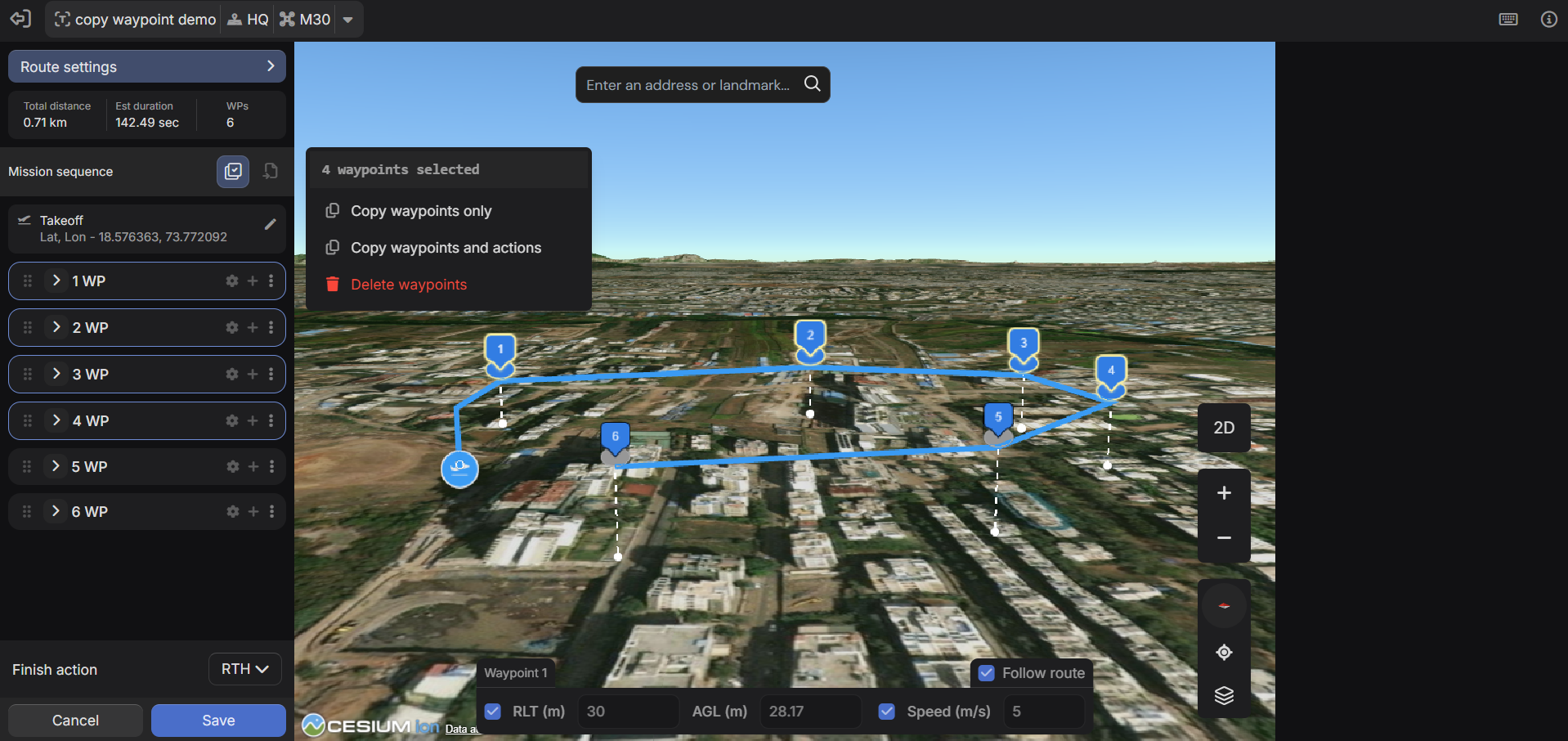
Step-by-Step Workflow
1. Enter Multi-Select Mode
Toggle via: • Toolbar button • Ctrl/Cmd + M
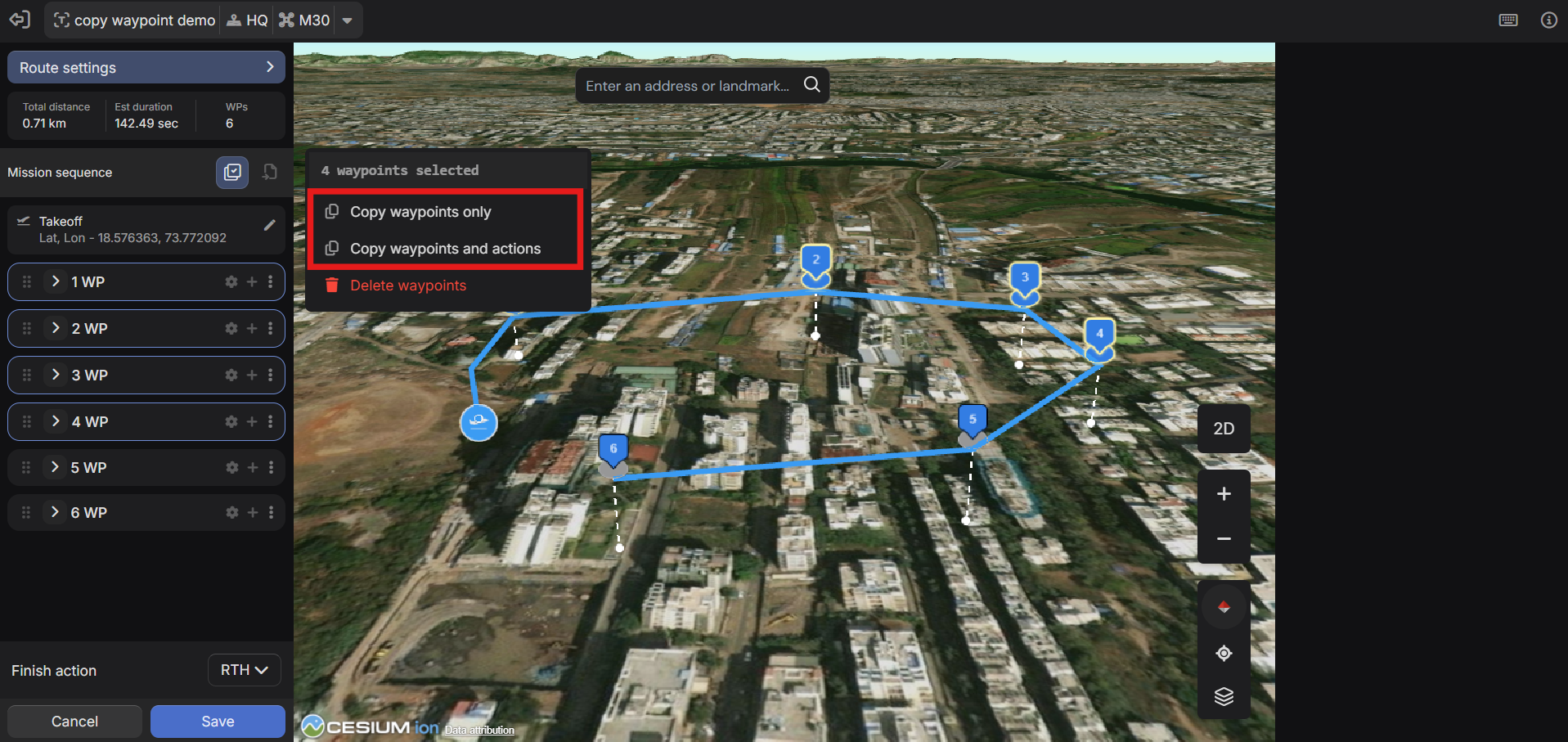
2. Select Waypoints
• Ctrl/Cmd + Click → Select individual waypoints • Shift + Click → Select range • Ctrl/Cmd + A → Select all • Escape → Clear selection
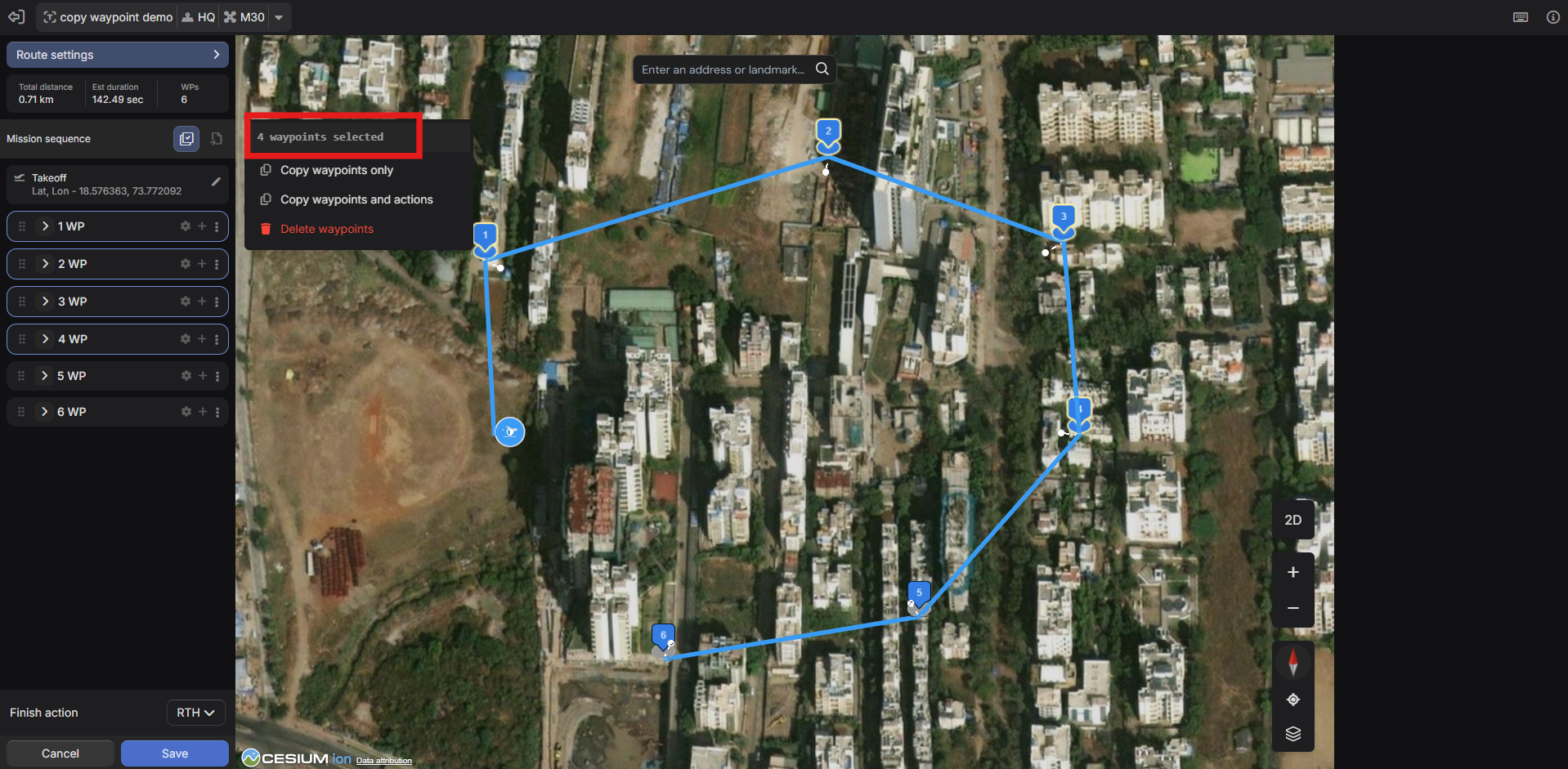
3. Copy
Choose: • Copy waypoints only • Copy waypoints and actions
4. Switch to Destination Mission
Open another mission tab.
Click the waypoint after which new waypoints should be inserted.
5. Import
Select: Import Waypoints → Copied Waypoints
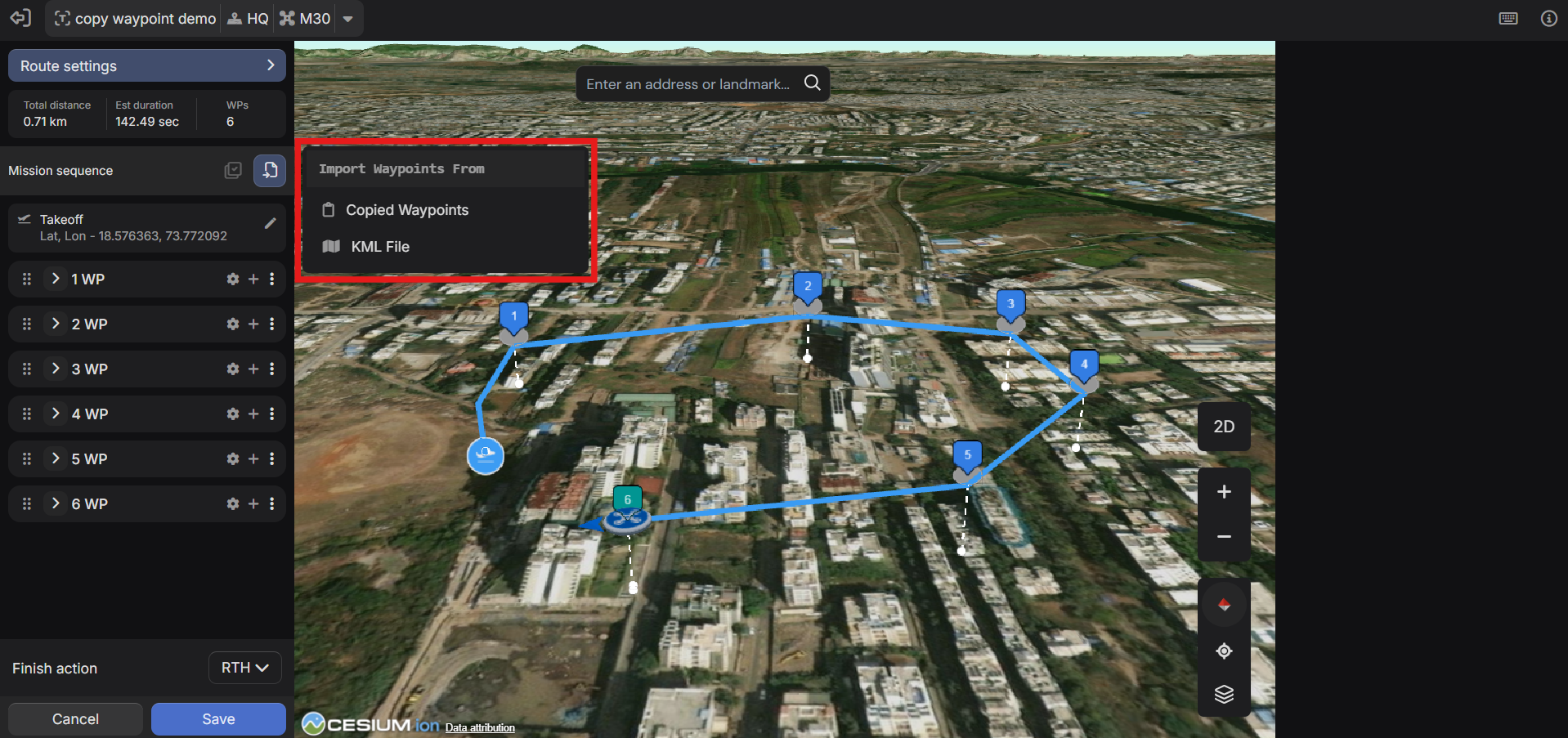
6. Confirm Paste
Waypoints are inserted: • After the selected insertion point • In original order • With preserved settings (if applicable)
If hardware configurations differ, compatibility errors are surfaced immediately.
Why This Matters
1. Consolidate Recording Missions
Instead of launching, flying, executing, and returning, and then launching, flying, executing, and returning again, you now launch once, execute all consolidated waypoints, and return once. The result is reduced transit time, lower battery usage, and faster execution cycles.
2. Build a Waypoint Library
Maintain missions for: Individual transformers, Turbines, Panels, Asset clusters. When inspection scope changes: Pull required waypoints, Assemble custom mission, Execute immediately
No rebuilding required.
Drag-and-Drop Waypoint Reordering
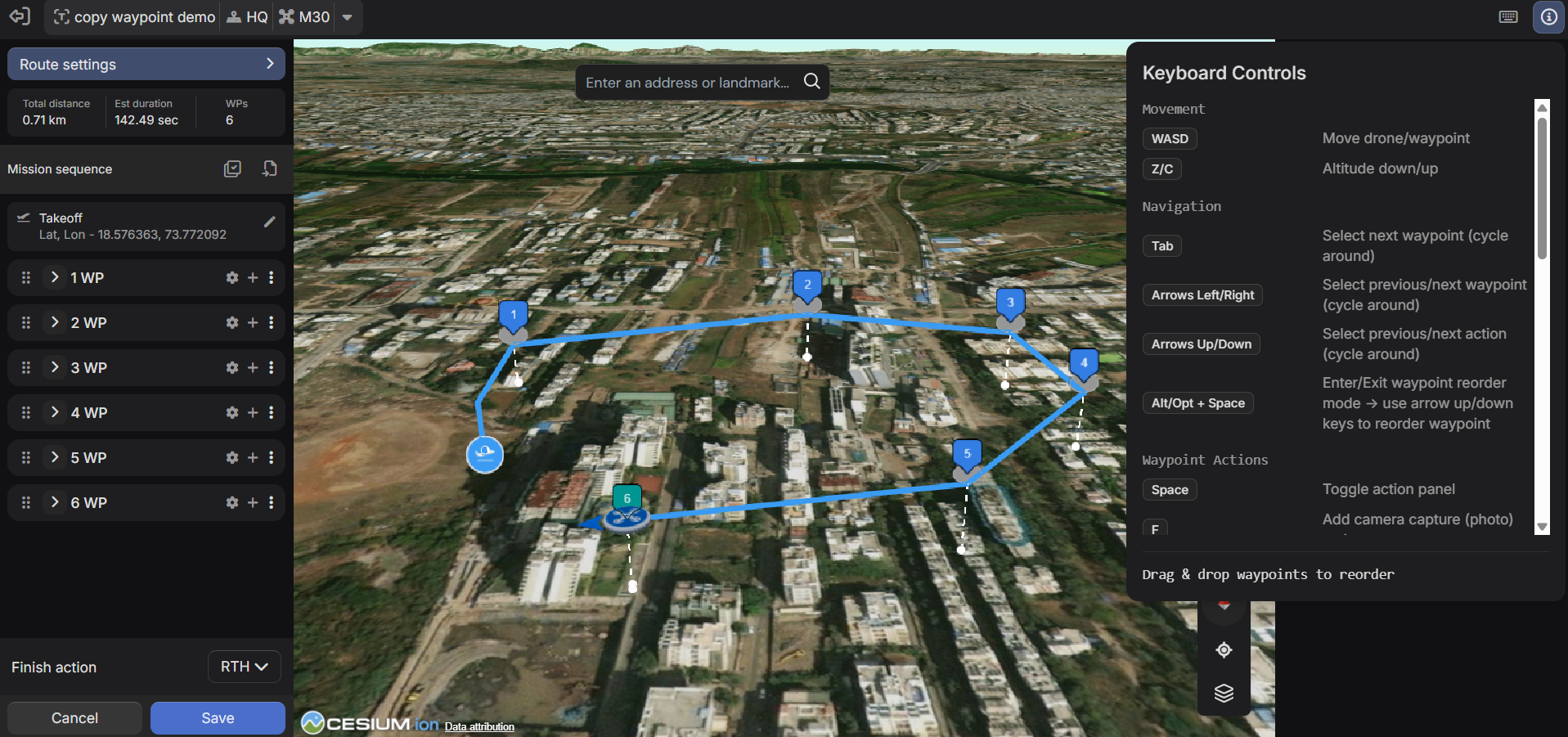
Waypoints can be reordered directly in the waypoint list, with the flight path updating instantly in the 3D map.

Also supported via keyboard: Alt/Opt + Space → Enter reorder mode Arrow Up/Down → Move waypoint
Insert Waypoints in Existing Sequences
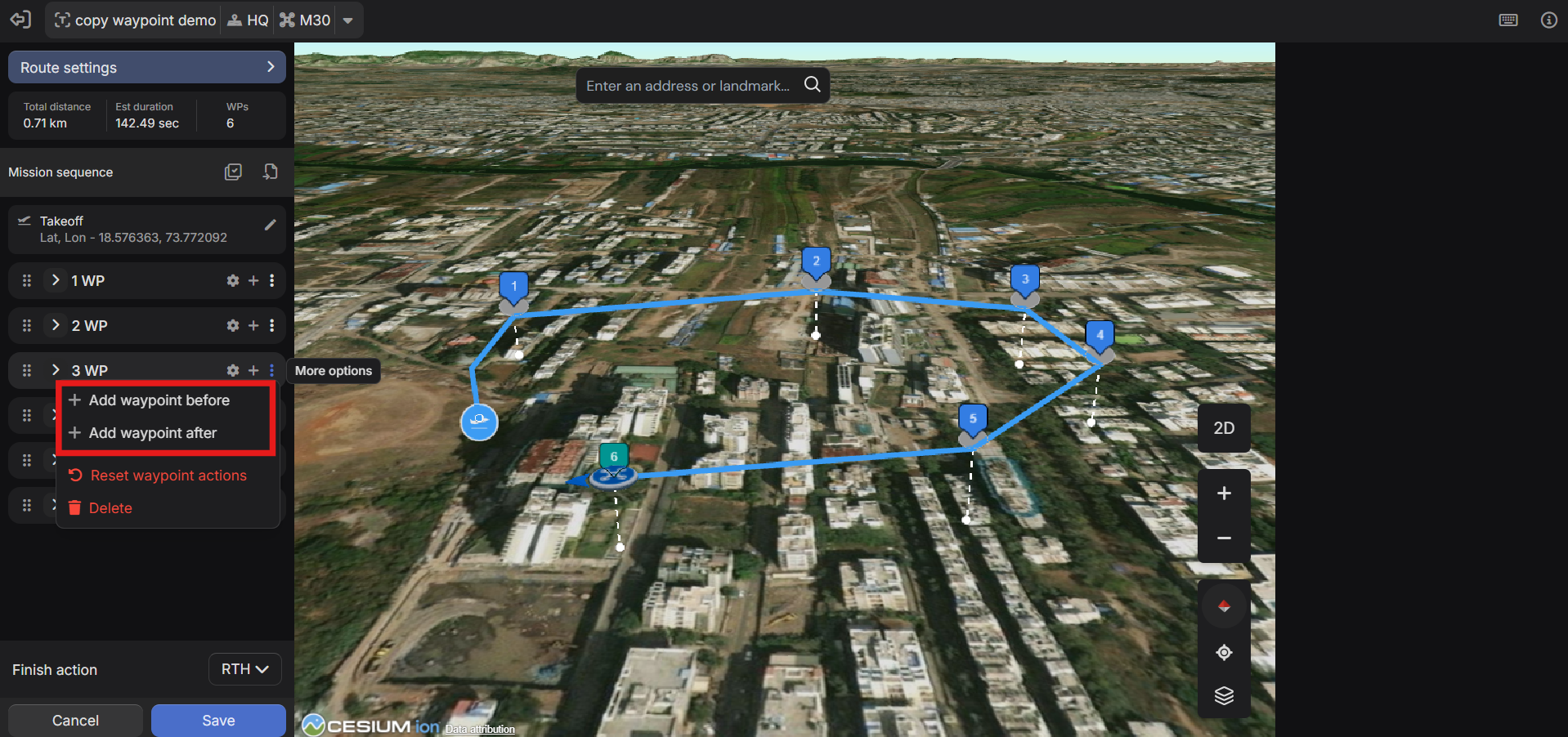
Add new waypoints before or after any existing waypoint. No longer restricted to appending at the end
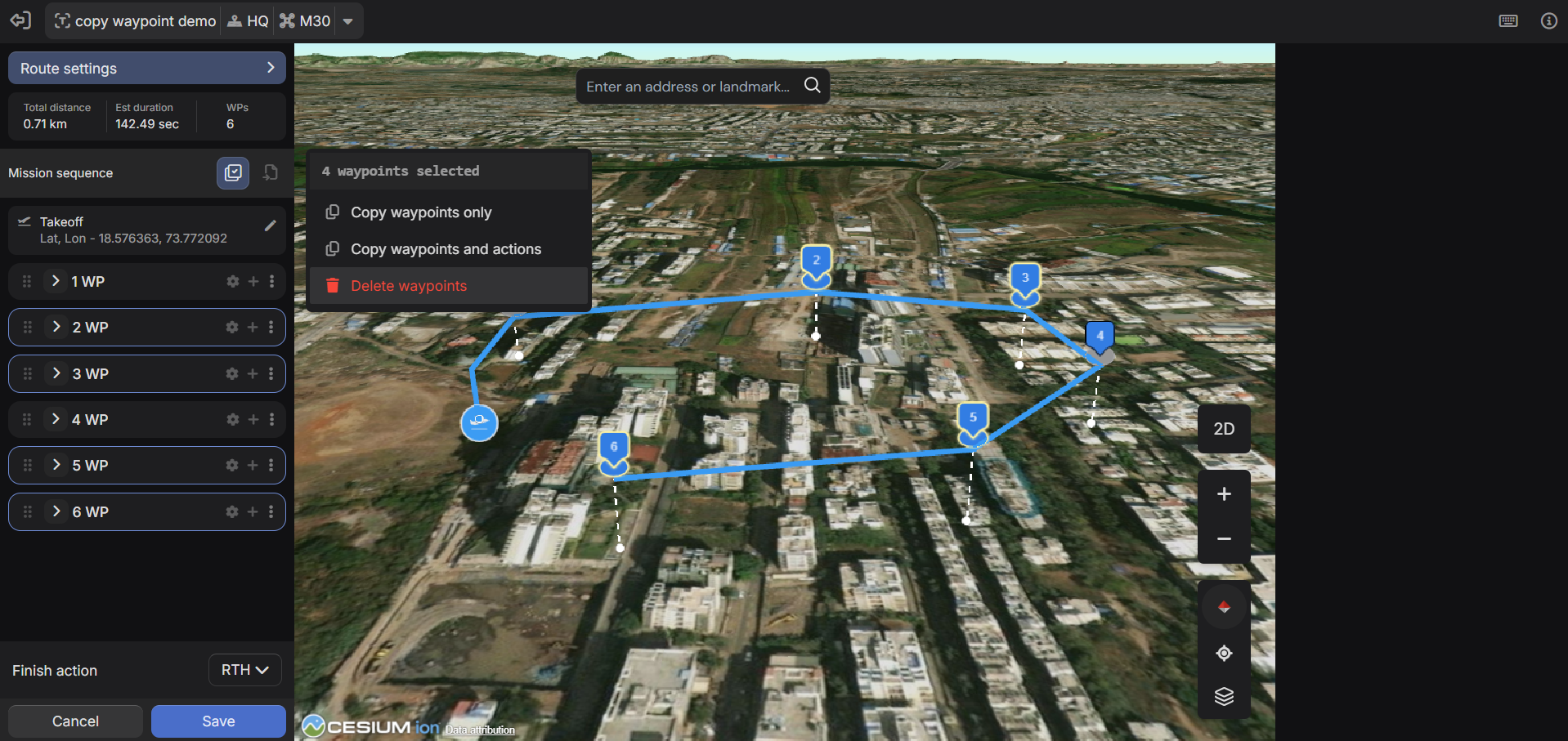
Multi-Select and Bulk Delete
Removes need for one-by-one deletion
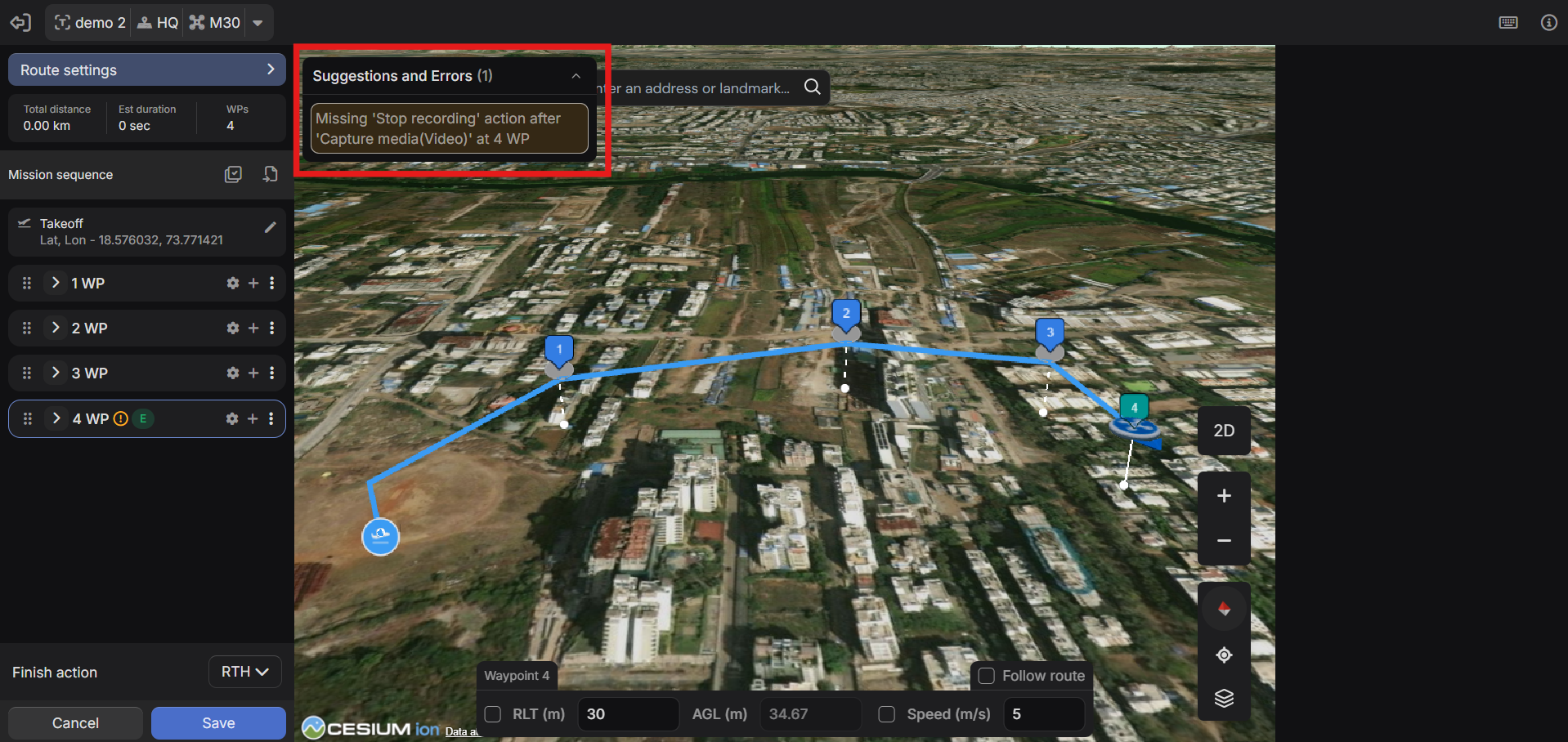
Suggestions and Errors Panel
Example: ‘Stop recording’ at waypoint 3 has no corresponding ‘Start recording.’
Benefits: • Prevents execution failures • Improves mission reliability • Reduces re-flight requirements
KML Import
Line KML files can be imported to create waypoint missions directly from existing geographic data. KML vertices are converted into waypoints that can be edited, reordered, and enhanced with actions.
Use case: Existing GIS flight paths, Inspection routes in Google Earth, Asset mapping data. Behavior: Line KMLs supported, Vertices converted to waypoints, No interpolation, Polygon KMLs not supported
Eliminates manual waypoint recreation from external mapping systems.
Keyboard Controls
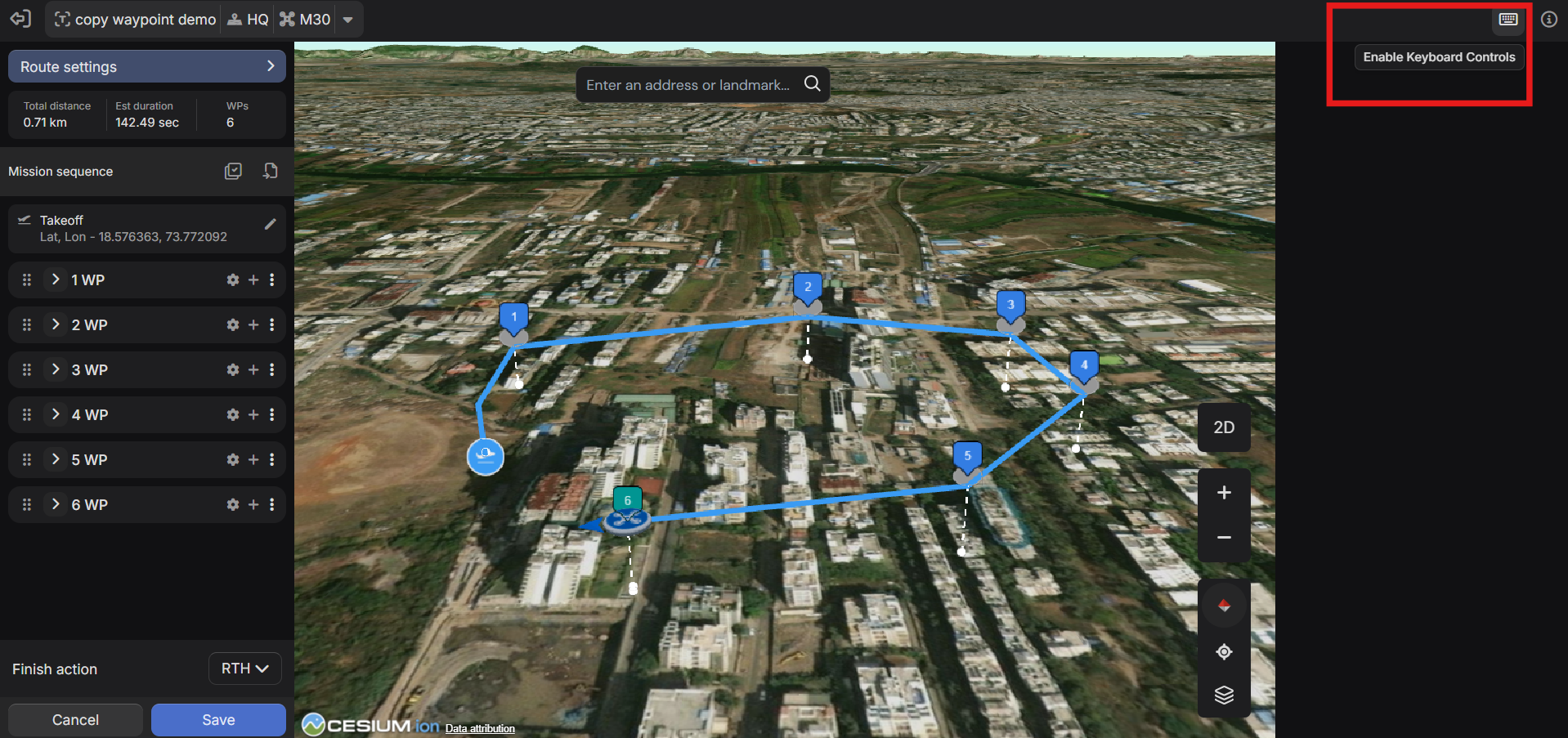
The 3D Mission Planner includes optional keyboard controls for faster waypoint navigation, editing, and reordering. Controls can be enabled from the top toolbar, with a full keymap available in the planner. It is disabled by default.
Was this helpful?