
Smarter Detection Event Configuration for Verkos Detect Anything Agent
The Problem With One Big List
In the previous Verkos experience, every detection event inside an agent lived in a single flat list. A solar farm operator opening the Solar Farm Management Agent saw one continuous scroll mixing perimeter intrusion, panel soiling, vegetation overgrowth, wildlife activity, and mounting structure corrosion together. No grouping, no hierarchy, no way to tell at a glance what the agent was actually built to monitor.
Two problems followed from this:
- Discovery suffered. Operators had to read through every event to understand what an agent could do
- Configuration was coarser than the operation needed. Inspection events depend on visible-light conditions; running them at night produces unreliable detections. Security events run 24/7. Forcing both into one schedule meant either accepting noise from inspection events at night or losing security coverage during the day
Detection Events fixes both.
Grouped, Visual, and Independently Scheduled
Detection Events is the new way of browsing and configuring what an agent watches for. Events are now organized into categories and themes, each with its own visual tile. And for the first time, each theme can run on its own time window, independent of every other theme on the same agent.
Categories
Events inside each agent are now organized into three categories:
- Security — events related to unauthorized access, behavioral patterns, threats, and intrusion
- Inspection — events related to asset condition, defects, environmental hazards, and equipment state
- Incident — events related to emergencies, hazards, and operational anomalies requiring immediate response
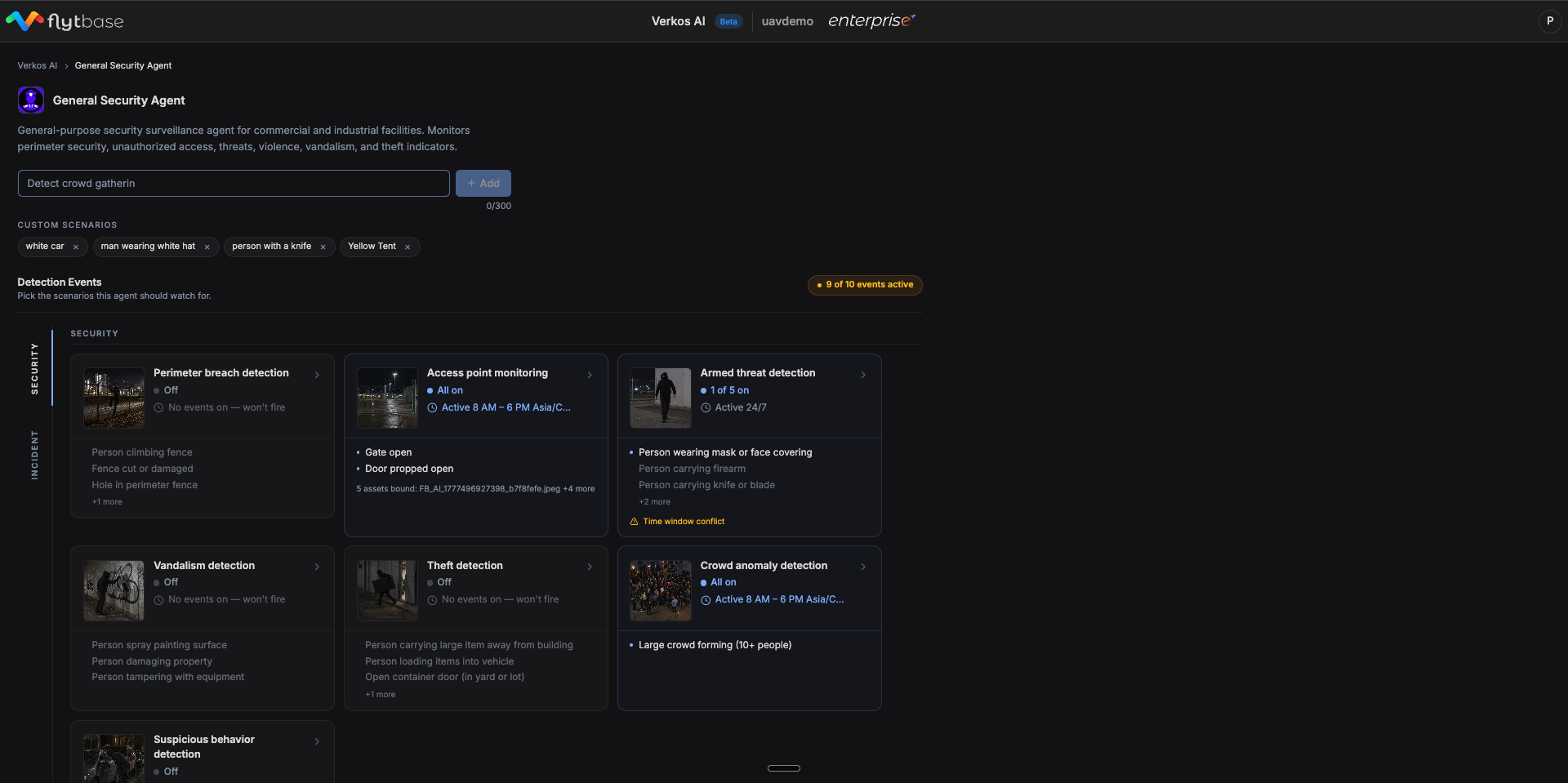
Not every agent uses every category. A Refinery Inspection agent may have a heavy Inspection and Incident presence with limited Security. A General Security agent is Security-dominant. The categories visible on each agent reflect what that agent is built to monitor.
Themes
Inside each category, related events are grouped into themes and presented as visual tiles. A theme is a coherent monitoring objective. The events inside it are the specific things the agent looks for to fulfill that objective.
For example, on the Solar Farm Management Agent, the Inspection category includes themes like Panel defect monitoring, Panel soiling monitoring, Vegetation overgrowth monitoring, Water ponding monitoring, Wildlife activity monitoring, and Mounting structure condition monitoring.
Each tile shows its current state at a glance:
- Status: All on, partial (e.g., "1 of 2 on"), or Off
- Active hours: "Active 24/7" or a configured window like "Active 9:15 AM - 6 PM"
- Conflict indicator: A "Time window conflict" warning if the configured hours fall outside the conditions the theme is designed for
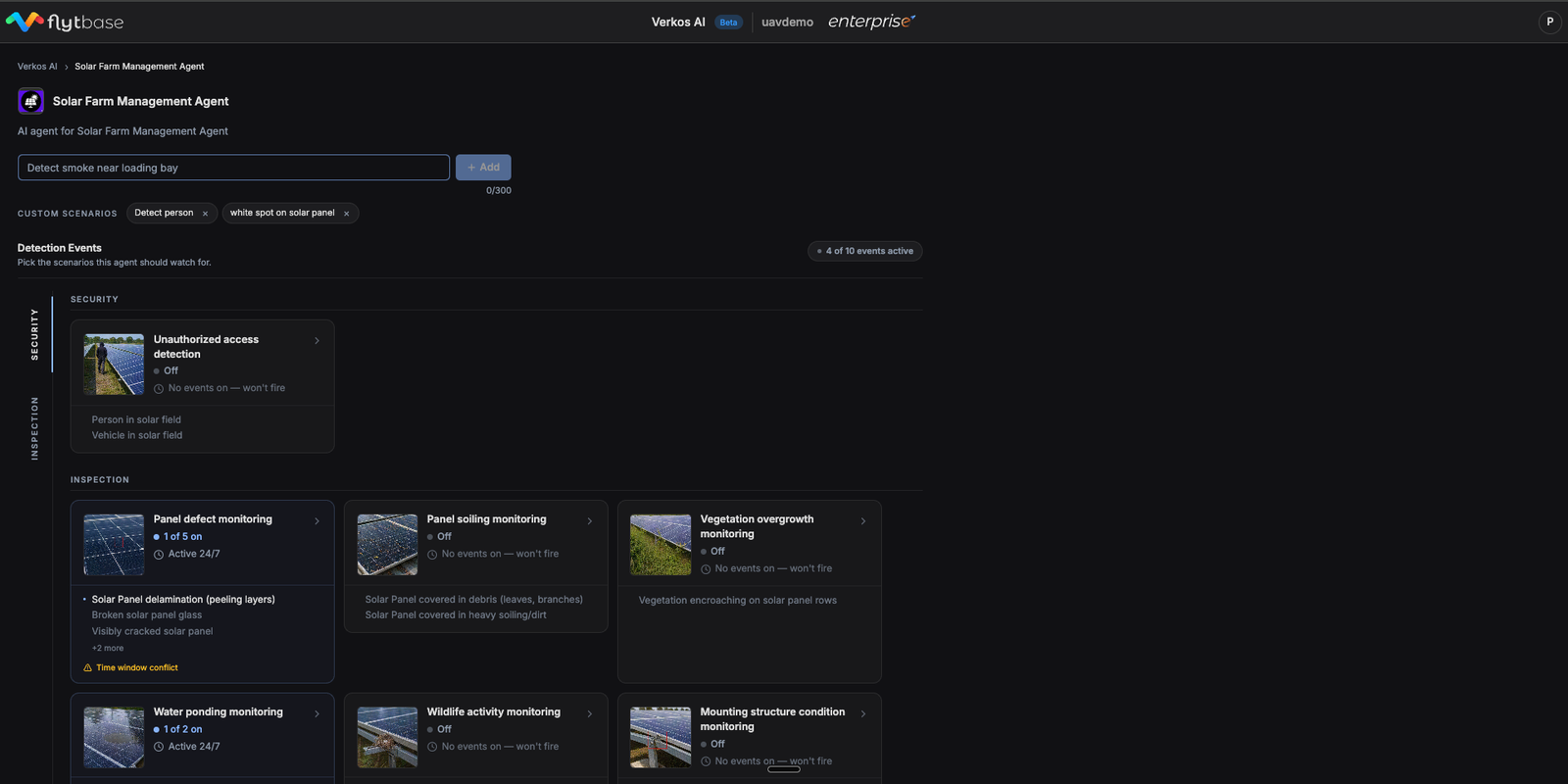
Click any tile to open its configuration panel.
Per-Theme Time Windows
Each theme can now be scheduled independently using the Run only during these hours control in the theme panel.
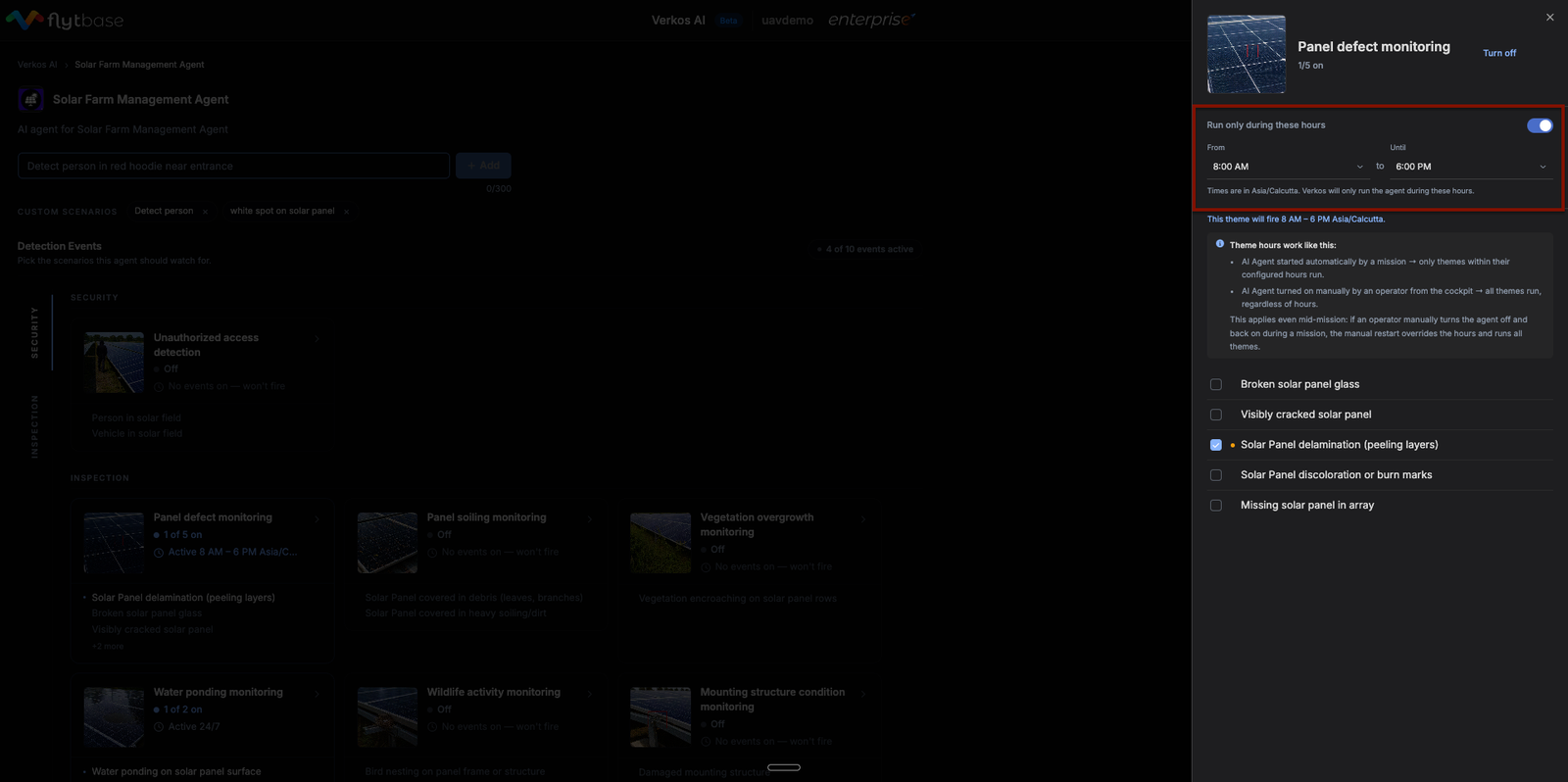
When the toggle is off, the theme runs whenever the agent is on (24/7). When it's on, the theme is only active during the configured window. A single agent can now run security themes around the clock and inspection themes only during daylight, without the operator having to start and stop the agent manually.
How Time Windows Interact With Manual Control
Configured hours apply when the agent is started automatically by a mission. Two things to keep in mind:
- If an operator manually turns the agent on from the cockpit during a flight, all enabled themes run regardless of their configured hours
- A manual restart mid-mission also overrides hours for the rest of that mission
Time windows are guardrails for scheduled, unattended operations. When an operator is in the cockpit making real-time decisions, the system trusts them.
Time Window Conflict Warning
Some themes have conditions under which they reliably produce useful detections, and others where they don't. A visible-light inspection theme like Panel soiling monitoring depends on daylight. Running it at 2 AM produces unreliable results.
When a configured window falls outside what a theme is designed for, the panel and the tile both surface a Time window conflict warning.
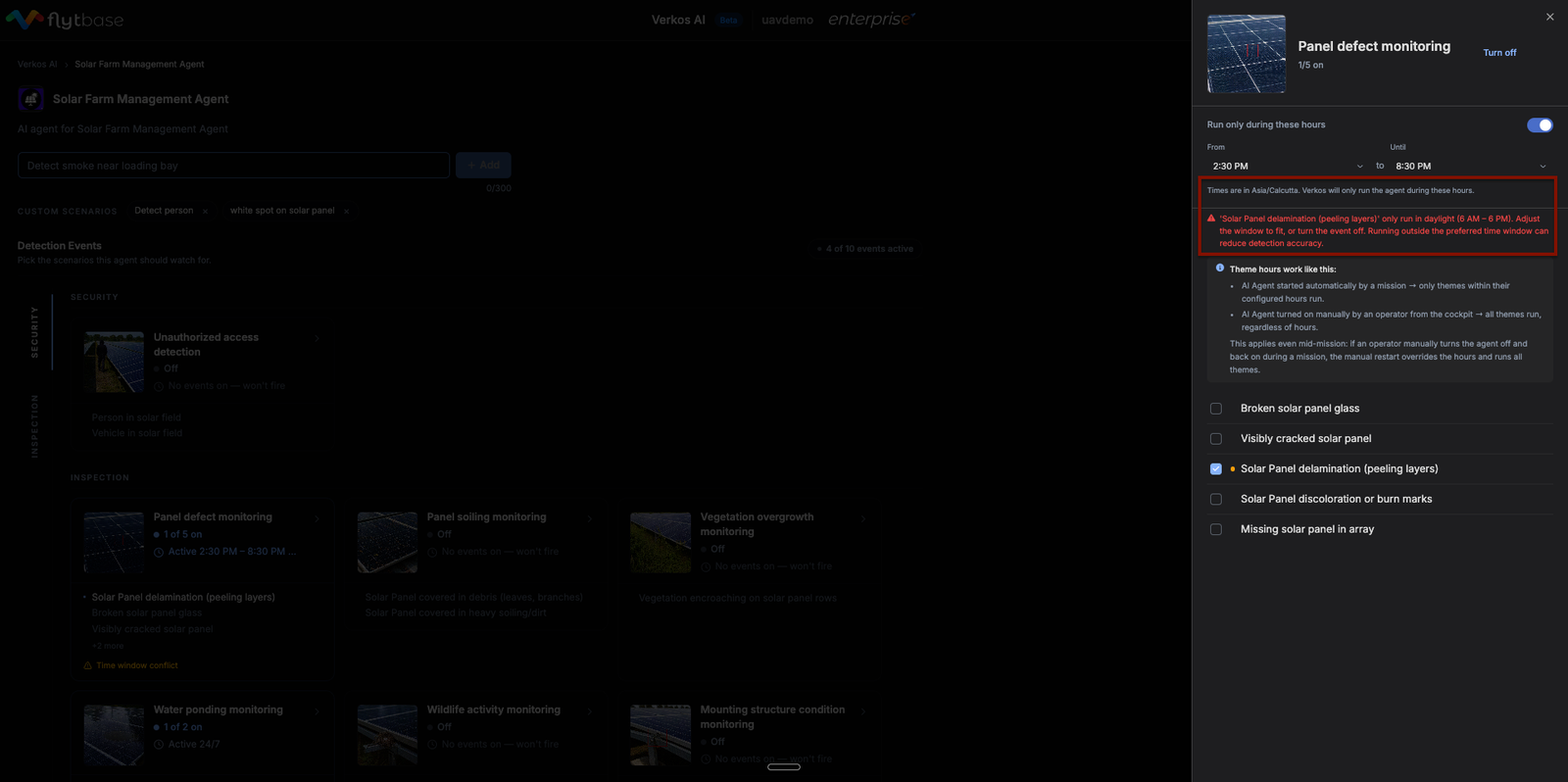
The warning does not block the configuration. The agent will still run the theme during the window the operator sets. The warning exists to make the trade-off visible. If you've configured an inspection theme to run partly at night, you should know that detection accuracy will degrade in those hours and decide whether that's acceptable.
Was this helpful?